

Want a way to catch up with all your favourite articles and blogs without the distractions from the internet? If you have an e-reader, I may have the perfect solution...

As much as I love sharing articles with you all, I feel like a bit of a hypocrite trying to keep you here whilst preaching about getting offline...
So today I'm going to share with you my method for reading all the articles I want to get through, without the distractions from the internet.
The solution: Dig out your old e-reader or invest in a new/second-hand one + sign up for a free service like Pocket App.
Jump to:
Why I use an e-reader to read articles
I'm a big fan of technology that provides just one use and doesn't try to detract from it with pointless distractions.
Most e-readers, with the exception of some newer models, are made with the sole purpose of being a reading tool.
You might be able to flip through chapters and switch books but you can't mindlessly scroll through newsfeeds and dozens of internet tabs.
Being able to read a curated selection of articles offline and at your own pace is like having a tailor-made magazine just for you. I will show you how I created this setup below...
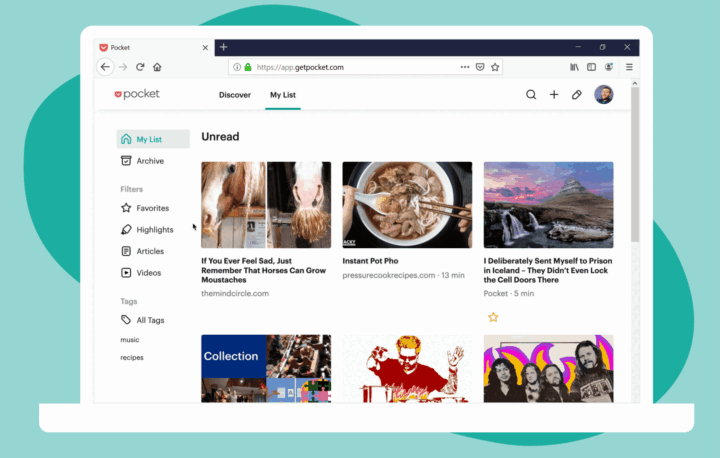
Create a Pocket app account
This post is going to be focused on Pocket, as that's what I know and use, but alternatives include InstaPaper and PaperScan. Instructions will be different if you choose one of these but they do offer e-reader support too.
The first step is to sign up for a Pocket app account.
Once you have an account, you can start saving articles you want to read later. The easiest way to do this is to install the browser extension to save them with the click of a button.
Now we'll move on to how to set up things on the e-reader side, covering the Kindle, Kobo and old iPad instructions.
How to read articles on your Kindle
Sign up for a service called P2K (Pocket to Kindle).
This sends the articles to your kindle, either automatically or manually. You can customise how often it pushes new articles to your Kindle.
It's a free service but with a paid version with premium features if you prefer more control over the speed and quantity of article deliveries.
How to read articles on your Kobo reader
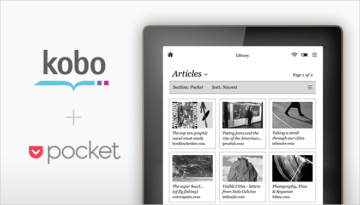
Syncing with Kobo e-readers is easy.
- Open the Menu
- Tap My Articles
- You’ll see a mention of Pocket underneath.
- Enter your Pocket email address and password and log in.
- You'll have instant access to your saved articles with automatic sync. Read more here.
Using an old tablet
Old out-of-date iPad + the Pocket app:
This is another method I can personally attest to. I have an old iPad 2 which is too old and clunky to use for distractions.
To use this method, simply install the Pocket app on the iPad.
Depending on which model you have it may not allow you to download it but there is a workaround IF you have access to an up-to-date iPad or iPhone.
- Sign in using the same Apple ID as your older iPad.
- Open the App Store and search for 'Pocket' then tap "get" to install the app.
- Once the app has been downloaded - you can delete it from the new device.
- Next, open the App Store on your old iPad.
- Tap your profile picture or initials in the upper right corner. Tap on "purchased," then "my purchases."
- Search the "my purchases" list for 'Pocket' and download.
- Allow the iPad to download the latest compatible version.
I know a lot of this seems fiddly at first but once you get set up it's very streamlined and stress-free.


Leave a Reply